



personalised icon
As parents, we adore making our little ones’ spaces feel truly special. Whether it’s their bedroom, a play area, or even the devices we use every day, there’s a unique joy in adding a touch of personality. It’s about reflecting who they are, their current fascinations, and the magic that fills their young lives. Sometimes, this means transforming a whole room with a splash of colour and character, and other times, it’s about the smaller, delightful details that bring a smile.
Key Takeaways
- Personal touches in children's spaces help capture their evolving interests and unique personality.
- Both room transformations and small decorative details can bring genuine joy to everyday family life.
- Personalisation extends beyond bedrooms to play areas and even the digital devices families use together.
- Adding character to a child's environment celebrates the magic of their current stage and fascinations.
Today, we’re going to explore a different kind of canvas: your phone’s home screen! We’ll explore how you can create your very own personalised icon, making your digital world as unique and fun as your child’s bedroom. Think of it as a mini-makeover for your most-used tools, a way to bring that same sense of bespoke charm to your fingertips. It’s surprisingly simple, incredibly rewarding, and best of all, can be done for free!
What Is a Personalised Icon and Why Parents Love Them
Key Takeaways
- A personalised icon is a custom graphic replacing a standard app icon, allowing for unique themes and easier visual recognition.
- Parents love them for expressing creativity, matching decor themes, and making devices feel more fun and individual.
- Different file formats like SVG, PNG, and EPS offer varying levels of scalability and compatibility for design.
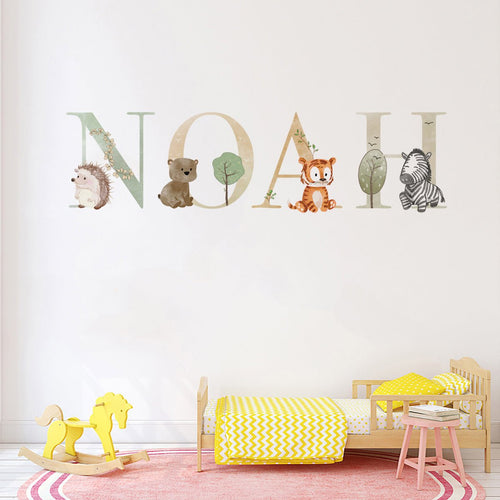
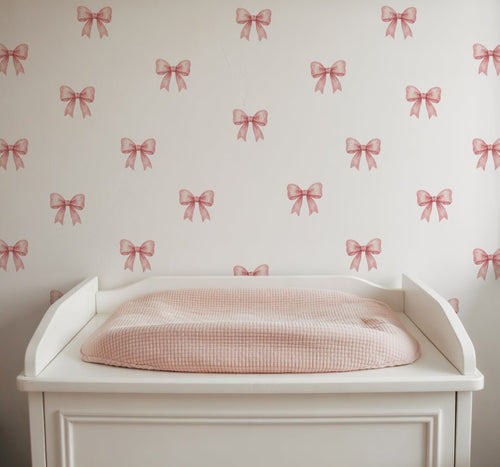
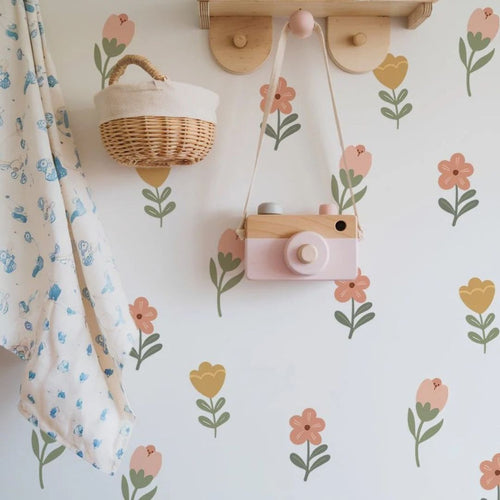
At its heart, a personalised icon is simply a custom image you use in place of the default graphic for an app or shortcut on your digital devices. It’s your chance to swap out that familiar, standard icon for something that truly speaks to you or your child’s current interests. For parents, this concept is wonderfully familiar. It mirrors the joy we find in choosing a specific design for a nursery wall, like our lovely British Floral-Inspired Personalised Names Wall Stickers, to make a space feel uniquely theirs. The same principle applies digitally. It’s about taking something generic and making it wonderfully, uniquely yours.
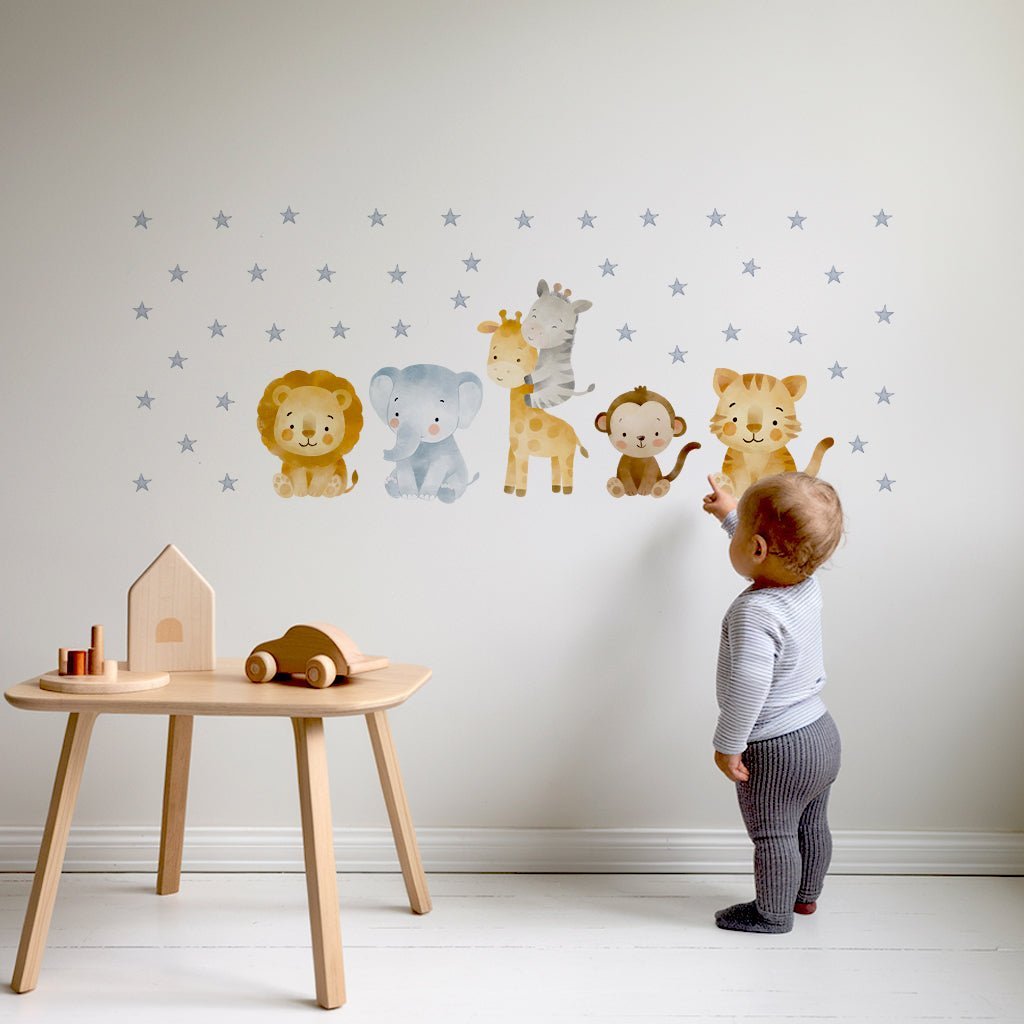
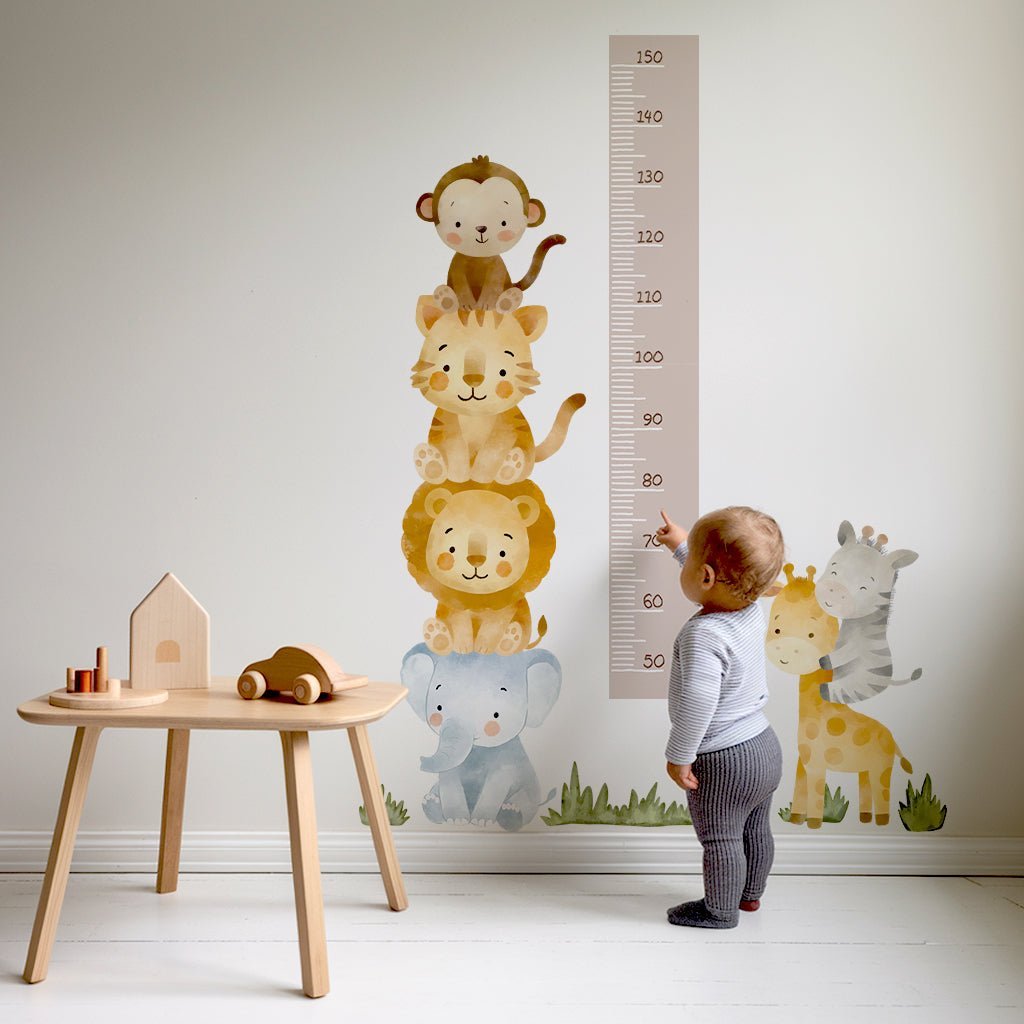
Why do parents, in particular, adore this idea? It’s all about expression and fun! If your little one is currently obsessed with safari animals, you can theme your phone’s icons to match their bedroom decor, creating a cohesive visual experience. Or perhaps you’re looking for free customizable icons that simply bring a bit more cheer to your daily digital interactions. It allows for a playful approach to technology, turning routine tasks into something a little more delightful. The ability to change these icons means your device can evolve with your child’s changing tastes, much like how our removable wall stickers allow you to refresh a room without the fuss of redecorating.
Common Icon File Formats Explained
- SVG (Scalable Vector Graphics)
- This format is fantastic for icons because it’s vector-based. This means it can be scaled to any size without losing quality or becoming pixelated. Perfect for designs that need to look sharp on both small phone screens and larger displays.
- PNG (Portable Network Graphics)
- PNG files are widely used and support transparency, which is essential for icons that need to sit cleanly on different backgrounds. They are raster-based, meaning they are made of pixels, so while good for many uses, they can become blurry if scaled up too much.
- EPS (Encapsulated PostScript)
- Often used in professional printing and design, EPS files are vector-based like SVGs. They are excellent for high-quality graphics and can be scaled infinitely. While perhaps less common for direct app icon use on phones, understanding them is helpful for graphic design basics.
How to Make Your Own App Icons for Free: A Step-by-Step Guide

Ready to give your phone a fresh, personal look? The great news is you don’t need to be a tech whizz or a graphic designer. Both iPhone and Android offer straightforward ways to change your app icons, often using built-in features or free, easy-to-use apps. This process allows you to apply that same spirit of customisation you might use for a child’s bedroom wall with our British Floral-Inspired Personalised Names Wall Stickers, right onto your digital interface. Let’s walk through how you can achieve this for both major mobile operating systems.
Creating iPhone Icons Using Apple Shortcuts
Apple's Shortcuts app is the primary tool for changing custom icons for iPhone without needing third-party apps to handle the shortcut creation itself. It’s a clever workaround that lets you create custom shortcuts to your favourite apps, assigning a new icon image to each. While it doesn’t change the actual app icon on your home screen in the traditional sense (it creates a shortcut that launches the app), the visual effect is exactly what most people are looking for. The process is quite intuitive, allowing you to pick any image file you’ve saved to your phone.
To get started, open the Shortcuts app. Tap the '+' icon to create a new shortcut. Then, select ‘Open App’ and choose the app you want to customise. Next, tap the small arrow next to the shortcut’s name and select ‘Add to Home Screen’. Here, you’ll see a placeholder icon; tap it and choose ‘Choose Photo’ to select your custom icon image. You can then name the shortcut (this name will appear below the icon) and save it. Repeat this for all the apps you wish to personalise, and voilà. Your iPhone home screen is transformed!
Changing App Icons on Android with Launchers and Icon Packs
Android users have long enjoyed more flexibility for customising their devices, and changing app icons is no exception. While some Android phones offer limited built-in options, the most comprehensive way to achieve a fully themed experience, including custom icon android support, is by using a third-party launcher. Popular choices like Nova Launcher, Action Launcher, or Lawnchair allow you to completely overhaul your home screen’s look and feel.
Once you’ve installed and set your preferred launcher as the default, you can usually long-press an app icon, select ‘Edit’ or ‘App Info’, and then tap the icon itself. This will typically bring up an option to choose an icon from your gallery or select from installed icon packs. Icon packs are collections of custom icons designed to work with launchers. You can find thousands of these, many of which are free customizable icons, on the Google Play Store. This method offers a very fluid way to apply a consistent style across all your apps, making your device feel truly unique, much like how a themed set of wall stickers can transform a child’s room.
Using MakeAppIcon and AppIconGenerator to Get the Right Size
When creating your own icons, whether for iOS or Android, ensuring they are the correct size and format is key to a professional look. Apps like MakeAppIcon and online tools such as AppIconGenerator are invaluable for this. These services are designed to take a single image file and automatically generate all the various sizes needed for different platforms and device resolutions. For example, iOS requires icons in multiple dimensions for the App Store, Spotlight search, and the home screen.
These tools simplify the process of creating custom icons ios 14 and beyond, or preparing graphics for Android launchers. You upload your chosen design. Perhaps a cute character, a favourite pattern, or even a part of our floral designs. And the service outputs a package of correctly sized files, often in PNG format. Some tools even allow you to specify desired icon shapes, like rounded squares, which helps maintain a consistent aesthetic across your apps. Using a tool like AppIconGenerator helps ensure your custom graphics appear crisp and clear, preventing any blurry or awkwardly cropped icons, and making the whole customisation process much smoother.
The Best Free Apps and Online Tools for Icon Customisation
Finding the perfect look for your phone’s home screen is all about having the right resources at your fingertips. Just like choosing the perfect wall stickers to bring a theme to life in your little one's room, selecting the right icons can make a huge difference to the overall feel of your digital space. Thankfully, the internet is brimming with fantastic, free tools and vast libraries of icons that let you express your style without spending a penny. Whether you're aiming for a playful, themed look inspired by your child's favourite characters or a more sophisticated, organised aesthetic, these resources are your starting point.
Creating a consistent and appealing look for your phone requires a thoughtful approach to design. It’s not just about picking random images; it’s about building a visual language that works for you. This is where understanding a few basic design principles comes in handy. Think about the overall mood you want to create. Is it cheerful and bright, calm and minimalist, or perhaps themed around a specific interest? By considering elements like colour, shape, and style, you can ensure your custom icons not only look great but also make your device easier and more enjoyable to use.
Where to Find Free Icon Packs: Flaticon, Icons8, and Noun Project
When you're on the hunt for graphics to bring your digital vision to life, certain platforms stand out for their extensive collections and user-friendly interfaces. Flaticon, for example, is an absolute treasure trove, hosting over 18 million free icons covering virtually every topic imaginable. This means you can find thousands of options that might perfectly match a theme, from whimsical woodland creatures to geometric shapes, allowing for truly personalised decoration of your device.
Similarly, Icons8 offers a vast selection of free icons in various styles, making it easy to find graphics that fit your desired aesthetic. They provide tools to adjust colours and sizes, adding an extra layer of customisation. The Noun Project also presents a wealth of icons, with over 1,033 icons specifically tagged with 'personalise' or related terms, and millions more general options. These platforms are invaluable for discovering free customizable icons that can be downloaded and used to change your phone. For parents looking to match their digital space to their child's room, perhaps inspired by the charm of our British Floral-Inspired Personalised Names Wall Stickers, these sites offer endless possibilities to capture that same feeling of bespoke charm digitally.
| Resource | Key Features | Best For | Free Options |
|---|---|---|---|
| Flaticon | Massive library (18M+ icons), various styles, easy search, PNG/SVG downloads. | Finding a huge variety of icons for almost any theme. | Yes, with attribution. |
| Icons8 | Large collection, multiple styles, colour/size adjustment tools, icon packs. | Consistency across different icon styles and easy integration into design workflows. | Yes, with attribution. |
| The Noun Project | Millions of icons, focus on simplicity and universal symbols, great for specific concepts. | Discovering unique symbols and icons for specific meanings or themes. | Yes, with attribution. |
| WidgetClub | Extensive library of icon sets specifically for phone customisation, often bundled with widgets. | Finding pre-made aesthetic icon packs and widgets ready to use. | Yes, many free options available. |
Design Principles for a Cohesive Home Screen Aesthetic
Achieving a polished and pleasing home screen isn't just about finding pretty icons; it's about making them work together harmoniously. A key principle is establishing a consistent colour palette. Choose a few main colours that complement each other and stick to them across your icons. This could be inspired by your child's favourite colours, the theme of their room, or simply colours you find calming or cheerful. For example, if your nursery features soft pastels, extending that palette to your phone's icons will create a wonderfully cohesive feel, much like how our wall stickers are designed to work together.
Shape and style consistency are equally important. Decide whether you prefer flat icons, outlined graphics, or perhaps something with a bit more dimension. Using icons that share a similar visual style avoids a cluttered look. Consider the shape of the icons themselves. Many phone systems default to rounded squares, and using custom icons that fit this shape, or a consistent alternative shape like circles or squares, helps maintain a clean appearance. Tools that allow you to download icons in formats like customize icon png or customize icon svg offer the flexibility to ensure shapes and sizes are just right. When done well, this attention to detail transforms your device into a more personal and enjoyable space, making you feel as delighted as when you complete a room's transformation.
Tips for a Harmonious Home Screen
- Define a core colour palette for your icons.
- Select icons with a consistent visual style (e.g., flat, outline, 3D).
- Ensure icons have a uniform shape or fit within a chosen frame.
- Consider readability. Can you still tell what app it is at a glance?
- Group apps logically and use icons that reflect their function.
- Test your layout to ensure it feels balanced and easy to navigate.
From the Nursery to Your Home Screen: Matching Digital and Physical Spaces
Bringing the charm and personality of your child’s nursery into your digital life can be a lovely way to keep that playful spirit close, even when you’re on the go. Just as our British Floral-Inspired Personalised Names Wall Stickers brighten up a child’s room with their delicate floral patterns and customised names, you can extend that same warmth and creativity to your phone’s home screen. Creating a themed collection of app icons inspired by nursery colours, motifs, or your child’s favourite animals encourages a cohesive and joyful feeling every time you unlock your device.
Theming Your Phone with Rainbows, Safari Animals, and Pastel Shapes
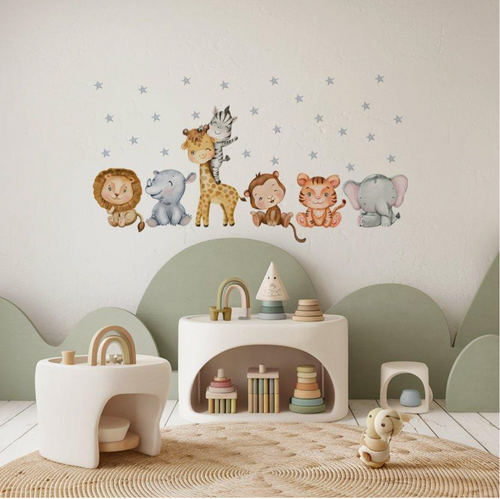
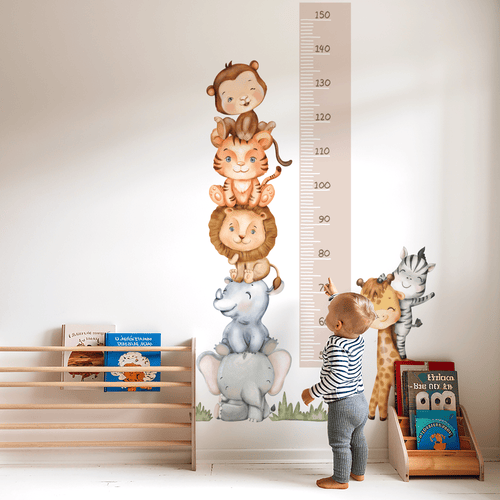
The key to a charming home screen is choosing a theme that reflects something meaningful from your child’s world. For example, if their nursery features soft pastel tones and gentle rainbows, selecting icon sets that echo those hues creates a soothing and consistent look. Safari animals that may be part of a playroom wall sticker collection can be transformed into app icons, making your phone feel like an extension of that imaginative space. This visual link between physical and digital decor makes even routine phone use a little more delightful.
Using simple shapes like circles or rounded squares in pastel colours helps unify the look while keeping things light and playful. You can find or create icons featuring elephants, giraffes, and lions, all in soft shades, which tie perfectly with the themes commonly found in nurseries. This kind of thoughtful theming echoes the spirit of the British Floral-Inspired Personalised Names Wall Stickers, where each element is designed to complement the overall aesthetic and bring a sense of calm and magic to a child’s space.
Using Personal Photos Safely to Create Custom Family Icons
One of the most personal ways to customise your phone is by turning favourite family photos into app icons. This can be especially meaningful when using pictures of your child or cherished moments, helping to keep those memories close throughout the day. To do this safely and effectively, it’s best to use images that are simple, clear, and cropped to focus on a single subject. Busy or detailed photos can become confusing when reduced to icon size.
Apps and online tools that support customize icon png or customize icon svg formats allow you to edit your photos, adding soft borders or subtle filters that match your nursery’s colour scheme. This technique helps connect your digital icons with your physical home environment while preserving privacy and ensuring clarity. Remember, the goal is to combine practicality with sentimentality, creating icons that are both beautiful and easy to recognise.
Image Gallery Concept
Imagine a gallery featuring your favourite nursery sticker designs alongside their digital icon counterparts. This visual comparison inspires how to translate physical decor styles into digital creations, keeping every space connected and thoughtfully styled.
Troubleshooting Custom Icons: Reversions, Dark Mode, and Privacy

Why Do My Custom Icons Keep Reverting After a Restart?
A common frustration parents encounter when changing app icons is that custom icons sometimes revert to the default image after restarting the device. This behaviour is especially noted on some versions of macOS and iOS, where the system resets shortcuts or temporary files, causing the personalised icon to disappear. Understanding this helps you anticipate and manage the issue without losing your customised look.
One way to reduce this problem is to ensure shortcuts or launcher apps are regularly updated and that you do not delete the original image files from your device. For iPhone users, using the Apple Shortcuts app carefully by not removing or renaming shortcuts after creation also helps maintain stability. Unfortunately, some system updates may temporarily affect icon customisation, so patience and reapplying your icons after updates might be necessary. This minor inconvenience is offset by the joy of having a personalised icon collection that truly feels yours.
Navigating Dark Mode Compatibility and Hidden App Names
Another issue with custom icons is how they appear in dark mode. Many icons are designed with light backgrounds or soft pastel colours, which can become less visible or clash with a dark screen. To avoid this, select or create icons with contrasting elements or use transparent backgrounds to allow the dark wallpaper to show through naturally. This approach maintains readability and aesthetic balance across different device themes.
Additionally, on iOS 14 and later, large custom icons may hide the app’s name beneath, which can make navigation tricky, especially for parents managing multiple apps for their children. Choosing icons that include a small, clear label or using widgets to complement icon shortcuts can improve usability. Keeping a consistent style and naming convention ensures that your personalised icon setup remains both charming and practical.
Common Troubleshooting Tips
Pros
- Clear steps to reduce icon reversion improve user experience
- Dark mode-aware icon design enhances visibility and style
- Using labels and widgets helps maintain app identification
Cons
- System updates may temporarily undo customisations
- Dark mode can limit colour choices for icons
- Custom icons may require occasional maintenance and reapplication
References
Frequently Asked Questions
What is a personal icon?
A personal icon is a custom image used to replace the default app graphic on your phone or digital device. As a parent, this concept feels wonderfully familiar, much like choosing a specific design for a nursery wall to make a space feel uniquely yours. A personalised icon brings that same bespoke charm right to your fingertips.